The best shortcuts in Photoshop

Commonly used shortcuts
General shortcuts make working in Photoshop easier. When adjusting your images for Photo gifts such as Calendar, Photo mugs and more – you’ll not only save time, but also a few mouse clicks. This way, you can enhance your wonderful memories in just a few steps and capture them on high-quality printed products.
| Keyboard shortcut | Windows | macOS |
| Keyboard shortcuts | Alt + Shift + Ctrl + K | Alt + Shift + Cmd + K |
| Menus | Alt + Shift + Ctrl + M | Alt + Shift + Cmd + M |
| Default settings: General | Ctrl + K | Cmd + K |
| Save | Ctrl + S | Cmd + S |
| Translate freely | Ctrl + T | Cmd + T |
| Reduce brush size | Ö | Ö |
| Increase brush size | # | # |
| Reduce the brush’s edge sharpness | { | { |
| Increase the edge sharpness of the brush | } | } |
| Switch between painting and erasing using the same brush | `hold down` | `hold down` |
| Standard colour for foreground and background | D | D |
| Swap the foreground and background colours | X | X |
| Adjust the number of levels displayed on screen | Press Alt and click on the layer | Press Option + and click on the layer |
| New level created by copying | Ctrl + J | Cmd + J |
| New layer created by cutting out | Shift + Ctrl + J | Shift + Cmd + J |
| Expand selection | Any selection tool + drag whilst holding down the Shift key | Any selection tool + drag whilst holding down the Shift key |
| Automatic selection with the move tool on/off | Click whilst holding down the Ctrl key | Click whilst holding down the Cmd key |
| Close all open files except the current one | Ctrl + Alt + P | Cmd + Option + P |
| Navigating between fields | Tab key | Tab key |
| Navigating between fields in the opposite direction | Tab + Shift | Tab + Shift |
| Change “Cancel” to “Reset” | Alt | Option |
Function keys
| Keyboard shortcut | Windows | macOS |
| Cut out | F2 | F2 |
| Copy | F3 | F3 |
| Insert | F4 | F4 |
| Show/hide the ‘Paintbrush’ control panel | F5 | F5 |
| Show/hide the ‘Colour’ control panel | F6 | F6 |
| Show/hide the ‘Layers’ control panel | F7 | F7 |
| Show/hide the ‘Info’ panel | F8 | F9 |
| Back to the previous version | F12 | F12 |
| Invert selection | Shift + F7 | Shift + F7 |
Shortcuts in the ‘File’ menu section
Particularly for large-scale projects, such as image editing for Poster or even Roll-upsShortcuts such as ‘Save’ or ‘Export’ are essential. They help you switch quickly between drafts and save files in print-ready formats.
| Keyboard shortcut | Windows | macOS |
| New | Ctrl + N | Cmd + N |
| Open | Ctrl + O | Cmd + O |
| Close | Ctrl + W | Cmd + W |
| Close all | Alt + Ctrl + W | Option + Cmd + W |
| Save | Ctrl + S | Cmd + S |
| Save as | Shift + Ctrl + S | Shift + Cmd + S |
| Export as | Alt + Shift + Ctrl + W | Option + Shift + Cmd + W |
| Ctrl + P | Cmd + P | |
| Exit | Ctrl + Q | Cmd + Q |
Shortcuts in the ‘Edit’ menu section
| Keyboard shortcut | Windows | macOS |
| Undo | Ctrl + Z | Cmd + Z |
| Repeat | Shift + Ctrl + Z | Shift + Cmd + Z |
| Cut out | Ctrl + X | Cmd + X |
| Copy | Ctrl + C | Cmd + C |
| Copy, reduced to a single level | Shift + Ctrl + C | Shift + Cmd + C |
| Insert | Ctrl + V | Cmd + V |
| Insert an original item | Shift + Ctrl + V | Shift + Cmd + V |
| Add to selection | Alt + Shift + Ctrl + V | Option + Shift + Cmd + V |
| Content-based scaling | Shift + F5 | Shift + F5 |
| Translate freely | Ctrl + T | Cmd + T |
| Colour settings | Shift + Ctrl + K | Shift + Cmd + K |
Shortcuts in the ‘Image’ menu section
| Keyboard shortcut | Windows | macOS |
| Workspace | Alt + Ctrl + C | Alt + Cmd + C |
| Image size | Alt + Ctrl + I | Option + Cmd + I |
| Tone value correction | Ctrl + L | Cmd + L |
| Hue / Saturation | Ctrl + U | Cmd + Ctrl |
| Reduce saturation | Shift + Ctrl + U | Shift + Cmd + U |
| Colour balance | Ctrl + B | Cmd + B |
| Black and white | Alt + Shift + Ctrl + B | Option + Shift + Cmd + B |
| Reverse | Ctrl + I | Cmd + I |
Shortcuts in the ‘Selection’ menu section
| Keyboard shortcut | Windows | macOS |
| Select all | Ctrl + A | Cmd + A |
| Clear selection | Ctrl + D | Cmd + D |
| Select again | Shift + Ctrl + D | Shift + Cmd + D |
| Invert selection | Shift + Ctrl + I | Shift + Cmd + I |
| All levels | Alt + Ctrl + A | Option + Cmd + A |
| Search levels | Alt + Shift + Ctrl + F | Option + Shift + Cmd + F |
| Select and mask | Alt + Ctrl + R | Option + Cmd + R |
Shortcuts for the layers function
Layers are at the heart of many Photoshop projects. By using combinations such as creating a new layer or a clipping mask, you can fine-tune your designs. This is particularly useful for large-scale Photo products for the wallWhen every line and every detail counts, these shortcuts ensure your work remains clear and well-organised. The result? Perfectly coordinated layouts that look just as good in real life as they do on screen.
| Keyboard shortcut | Windows | macOS |
| New level | Shift + Ctrl + N | Shift + Cmd + N |
| Duplicate layer | Ctrl + J | Cmd + J |
| Level achieved by cutting out | Shift + Ctrl + J | Shift + Cmd + J |
| Create a cutting template | Alt + Ctrl + G | Option + Cmd + G |
| Group by level | Ctrl + G | Cmd + G |
| Ungroup layers | Shift + Ctrl + G | Shift + Cmd + G |
| Lock layer | Ctrl + / | Cmd + / |
| Show/hide level | Ctrl + , | Cmd + , |
| Reduce to a single level | Ctrl + E | Cmd + E |
| Reduce visible items to a single level | Shift + Ctrl + E | Shift + Cmd + E |
| Export as | Alt + Shift + Ctrl + . | Option + Shift + Cmd + . |
| Quick export as JPG | Shift + Ctrl + . | Shift + Cmd + . |
Shortcuts in the ‘View’ menu section
| Keyboard shortcut | Windows | macOS |
| Zoom in | Ctrl + + | Cmd + + |
| Zoom out | Ctrl + - | Cmd + - |
| Full image | Ctrl + 0 | Cmd + 0 |
| 100% view | Ctrl + 1 | Cmd + 1 |
| Move view | Space bar | Space bar |
| Rulers | Ctrl + R | Cmd + R |
| Align | Shift + Ctrl + , | Shift + Cmd + , |
| Show guides | Ctrl + , | Cmd + , |
| Hide guides | Alt + Ctrl + , | Option + Cmd + , |
| Show grid | Alt + Shift + Ctrl + , | Option + Shift + Cmd + , |
Shortcuts in the ‘Tools’ menu section
| Keyboard shortcut | Windows/macOS |
| Move | V |
| Selection | M |
| Lasso | L |
| Magic wand | W |
| Crop | C |
| Frame | K |
| Pipette | I |
| Repair | J |
| Brush | B |
| Change colours | X |
| Standard colours | D |
| Carbon copy stamps | S |
| Eraser | E |
| History | G |
| Densitomer/re-exposure | O |
| Pen | P |
| Text | T |
| Masking mode | Q |
| Path/Direct selection | A |
| Shape | U |
| Hand | H |
| View rotation | R |
| Zoom | Z |
| Display mode | F |
Changing shortcuts in Photoshop
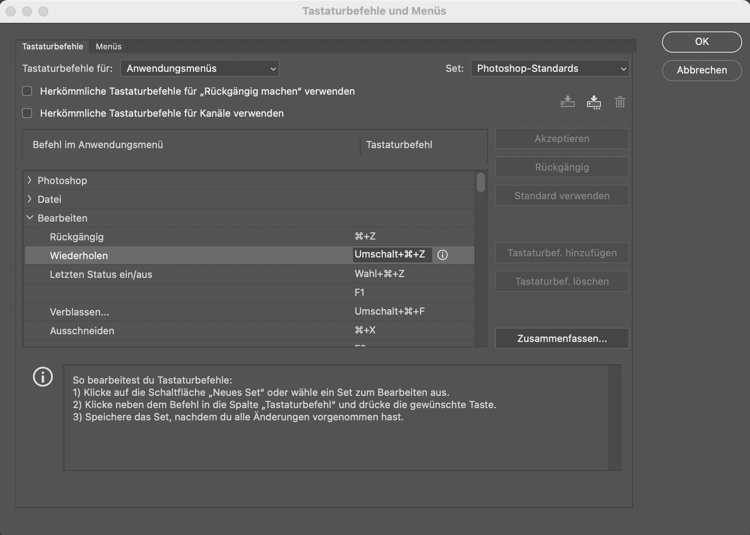
Would you like to create your own shortcuts? It’s really easy to do in Photoshop. In the ‘Edit’ menu, you’ll find ‘Keyboard Commands’. Once you’ve clicked on it, a window will open where you can customise the keyboard shortcuts! In the same window, under ‘Summary’, you can create a list of all your keyboard shortcuts. Photoshop will compile your active shortcuts into an HTML file for you here.